
Tool Calling
Allowing the AI to use web search, knowledge and other tools
How it works
Tools are useful additional features that you can activate to help the AI perform certain tasks more effectively. You can find them in the chat under this icon:

...In the menu behind it, you'll see the available tools and can turn them on and off for your chat.
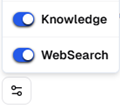
What tools are available:
The AI Workplace offers web search and the use of knowledge by assistants as standard features. We are working to continuously expand this selection.
Admins can also connect their own n8n workflows in the settings. These also appear in the tool menu and allow you to control the workflows from the AI Workplace.
How the AI uses tools: When you activate a tool, the AI knows it's available. It uses it automatically when it finds it helpful. You can also mention the tool in your prompt.
Security: Before the AI uses a tool, it asks for your permission. You can then allow its use once or for the entire chat history—or deny it. This increases the AI's autonomy, but you always retain control.
Models: Not all models support tool calls. You can identify whether a model can use tools by a corresponding icon in the model selection. The Mistral and Qwen models support tools.
Below you will find:
-
An explanation of the available tools.
-
Instructions on how to connect your own n8n workflows via MCP.
The Available Tools
1. WebSearch
Allow the AI to perform an internet search. The search is run through Brave Search – a privacy-friendly search engine with no user tracking and its own search index.
However, we recommend only allowing search queries that do not contain sensitive information.
2. Knowledge (for Assistants)
When creating an assistant, documents can be uploaded (called Knowledge). These are automatically processed and made searchable.
If the Knowledge tool is activated, the AI compares incoming questions with the uploaded documents and incorporates relevant text passages into its answers.
The Knowledge tool is only available for assistants to which documents have been assigned.
More tools coming soon.
Connect your own n8n workflows via MCP (Admins only)
Admins can connect their own n8n workflows to control them from the AI Workplace. The connection is established via MCP (Model Context Protocol), an open standard for connecting AI models to external data sources and tools.
Created workflows are available to all users in the organization in the tool menu.
You can find detailed step-by-step instructions with examples in the Workflow Guide.
Add a new trigger: In the settings (via your name in the bottom left corner) under N8N MCP Triggers → Add new N8N MCP Trigger:
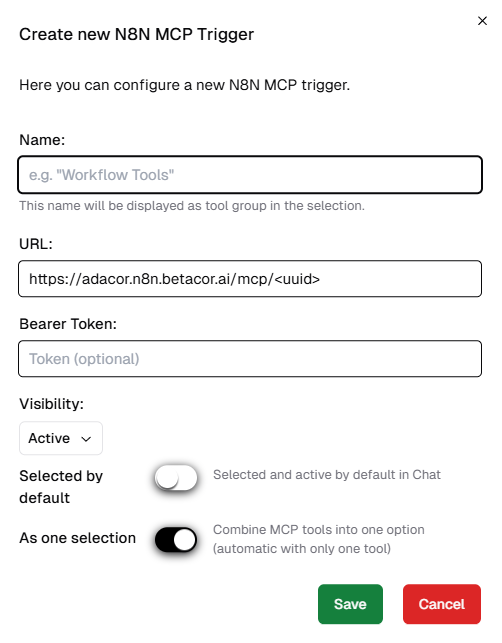
- Name: This is how it appears in the tool menu.
- URL: The webhook URL of your n8n workflow.
- Bearer Token: Optional access restriction that can be configured in n8n.
- Selected by default: Determines whether the tool is already activated when a chat starts.
- As one selection: An n8n workflow can provide multiple tools. With this option, all tools in the workflow appear as a single entry in the tool menu. Users can then only enable or disable the entire workflow, not individual tools within it.
Click Save. You can now find the workflow under your chosen name in the tool menu in the chat.
Activate the tool there and explain to the AI in the chat what you want to do. It now recognizes this trigger.
Depending on the workflow, the AI can start it, receive information, and even trigger actions.
To edit or delete triggers, go back to Settings, then to N8N MCP Triggers, and click the action menu on the right side of the desired trigger's row in the list.
Updated about 2 months ago