
Context Window - A Short Guide
How to get the most out of the AI's working memory
How the AI’s Memory Fills Up
The context window works like a dynamic memory. At the start of a chat, it contains only the system prompt – the hidden instruction that defines how the AI behaves. Every input – whether text, file, or image – takes up space within this window, measured in tokens.
A token roughly corresponds to a word or word fragment. Text uses relatively few tokens, while images or tables consume significantly more.
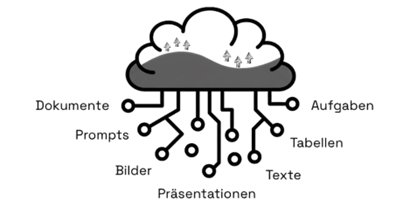
In the KI Workplace, this means:
The longer the conversation and the more complex the content, the faster the context window fills up. Once the conversation reaches the model’s limit, it automatically ends.
You can then simply start a new chat — the context window resets, keeping only the system prompt.
The Context Indicator
To help you keep track of how much memory your AI still has available, the context indicator in the KI Workplace shows in real time how much of your current context window is already in use.
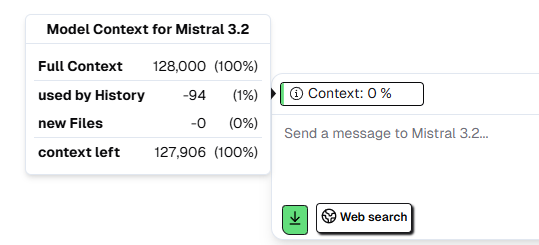
This helps you see in time when it’s best to start a new conversation before the limit is reached.
Especially for long projects, extensive texts, or large files, this small but practical feature helps you stay organized and work efficiently.
Model-Dependent Differences
The size of the context window depends directly on the AI model in use. The current standard model in the KI Workplace, Mistral 3.2, can hold about 200 pages of text (A4 format) in memory at once.
By comparison, an older model like Mixtral 8x7B could handle only about one-thirtieth of that capacity. This shows how much AI models have evolved over time.
Larger windows mean more context, fewer interruptions, and smarter results.
Everyday Tips
-
Keep your inputs concise to use the context window efficiently and avoid overly long texts.
-
Avoid reattaching the same files repeatedly.
-
Reduce complex documents — especially spreadsheets — to essential content.
-
Avoid major topic changes within a single chat, as earlier context can interfere.
-
Use the gear icon next to your previous prompts to manage the conversation:
- “Edit message” lets you modify your prompt and continue the chat from that point.
- “Ask in new chat” starts a new conversation with the same prompt.
- To begin a completely fresh chat, click “New chat” in the side menu.
-
When working with large files, watch the progress bar in the KI Workplace — it shows in real time how much space remains in the context window.
Conclusion
The context window is like your AI’s working memory. It determines how well the model can understand relationships and respond to your tasks. The larger the window, the more context the model can consider — and the better, more precise, and more consistent its results will be.
Updated 3 months ago