
Giving knowledge to the AI
Essential tips for uploads, assistant system prompts, and knowledge
You have data, files, or knowledge and want to ask the AI questions or assign tasks. But that's not always easy. Unexpected answers or hallucinations can easily arise.
After reading this guide, choosing the right approach in the AI workplace should be easy.
1 Three ways to provide knowledge
There are three ways to make your knowledge available to the AI:
- Chat: You copy the knowledge into the chat or upload it as a file. The AI has access to this knowledge until you start a new chat.
- Assistant system prompt: You create an assistant and write or copy knowledge directly into the system prompt (a field during creation). This knowledge is always available when the assistant is started.
- Knowledge in the assistant: You upload files to the knowledge of an assistant. This acts like an encyclopedia where the assistant can “look up” information as needed.
The difference:
-
For chat and assistant system prompts: The information is always available in full in the context and can be processed completely by the AI. However, it is limited in size. In Mistral 3.2, the context window can hold around 100-200 pages of text.
If the context display above the chat window changes from green to yellow or even red, you are approaching the limit of the context window and should start a new chat soon.
-
For knowledge: Knowledge has no limits and can theoretically contain any number of files-like a library. But the AI can only "look things up" there. It compares the question semantically with the content of the knowledge base and uses the best matches in its answer to you.
Like a person who goes to a bookshelf and takes out a book to find a specific answer, AI cannot keep all knowledge in context or process all the information it contains.
This works well for questions that have a clear answer in one place in the knowledge base.
Therefore, you should only upload relevant and well-structured files to the knowledge base, where AI can find the answer to your question.
At a glance:
- Information the AI needs to fully understand should be placed in the chat or system prompt.
- Additional reference knowledge that the AI only needs to extract can be stored in the knowledge base.
- Basically, AI understands semantic relationships, regardless of wording and language. So it knows that “Vertrieb” has something to do with "sales" and that ‘Wochenendzuschlag’ is a "benefit.”
| Chat text or chat upload | Assistant system prompt | Assistant knowledge |
|---|---|---|
| Fully processed by the AI | Fully processed by the AI | Source from which the assistant retrieves the best matches |
| Text or documents | Text only | Documents only |
| Expires when the chat ends | Stored within the assistant | Stored within the assistant |
| Current, short-term use case, e.g. meeting notes | Rules and core knowledge, e.g. a guideline | Reference knowledge, e.g. a list of contact persons for different support cases |
Examples
Use case 1: Assistant (Systemprompt only)
Example 1 Have a newsletter draft created regularly—the assistant follows your specified rules and existing basic knowledge.
Example 2 Have recurring social media posts created, e.g., monthly LinkedIn updates in a fixed writing style.
Use case 2: Assistant + chat upload
Example 1 Analyze meeting minutes by uploading them and having the assistant summarize the most important decisions and three to-dos for you.
Example 2 Have documents corrected – upload a file and the assistant will improve spelling, grammar, and formatting.
Use case 3: Assistant + Knowledge
Example 1 Benefits assistant: It uses the stored company benefits and consistently explains to new employees what offers are available and how they can be used – without any additional uploads.
Example 2 An assistant that uses permanently stored product knowledge and explains how your offers work in an understandable way at any time – ideal for internal teams or sales.
Instructions: How to upload documents
You have two options for uploading documents:
- You can upload them directly in the chat (paperclip button):
The chat also understands images, but only if they are uploaded as image files.
- You create an assistant and save documents in its knowledge: To manage an assistant’s knowledge, click on the three dots under Action in the Assistant & model settings and then on Manage Assistant Knowledge:
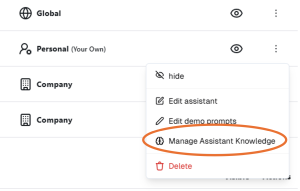
Here you can upload files from your hard drive.
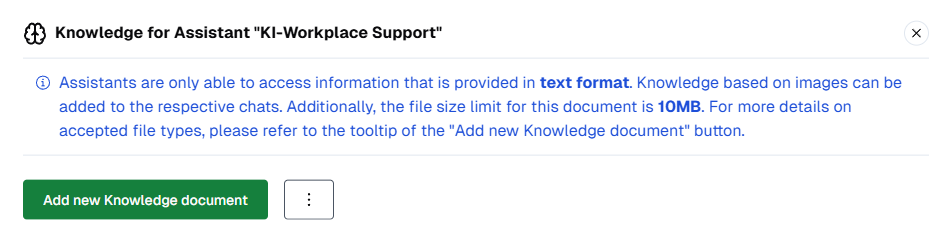
Wait a moment until they are embedded, then close the menu.
Knowledge can only process text, not images, even within documents. Images must be uploaded as image formats in the chat.
5 tips for better results
To achieve the best possible results and avoid problems, the following tips will help you:
1. Choose the right model
- Different models work differently well with documents. We recommend the Mistral 3.2 model.
- In case of possible bottlenecks during peak times, we recommend Gemma 3 as a second alternative.
- These two models offer the highest performance when processing documents.
2. Observe the limits
- The upload limit in the chat is 5 MB per file.
- The upload limit for assistants (“Knowledge”) is 10 MB per file.
- Supported formats: .png, .jpeg, .webp, .doc, .docx, .xls, .xlsx, .ppt, .pptx, .pdf, .html, .csv, .txt, .md, .xml, .yaml, .zip. You can also see these formats listed when you hover over the upload button in the chat (the paperclip icon).
- In chat, tables, images, and non-text files are converted to Markdown, a simplified language that LLMs can process more easily. Very complex and large files can also reach their limits here.
- This limitation does not exist in the knowledge area of assistants. Therefore, if you want to process many large and complex files and encounter limitations in chat, it makes sense to create an assistant .
3. Observe the Context Window
If you upload a document and have a lengthy conversation about it, the model has to continuously store more information. At some point, it reaches its limit and the chat ends.
- Images, graphics, and tables are converted into tokens and take up more space in the context window than text.
- The progress bar at the top of the chat window always shows you how full the Context Window is. When it approaches 100%, it's time to start a new chat.
You can find more information about the Context Window here.
4. Understanding how assistants work with knowledge
Documents uploaded to assistants are called “knowledge.” Knowledge can consist of large quantities of documents and is available to assistants as RAG (retrieval-augmented generation). However, due to this type of processing, there are also limitations compared to files that you upload directly in the chat:
- Knowledge can only consist of text. Images and graphics are not recognized. (These must be uploaded separately as image files in the chat.)
- Assistants never use all of the knowledge in the RAG, but search for the parts that best match the question.
- Assistants are therefore better at answering clear questions than abstract and open-ended questions.
- They are more likely to find data that is located in one place in the knowledge base than data that is spread across several locations.
- Prompts that are designed to lead to complex interactions with the user, i.e., several questions in succession, can lead to errors. It may be better to create several assistants for this purpose.
Updated 3 months ago